Evaluating Vector Pine Tree Illustration Sets for Your Creative Projects
When designing for print, web, apps, or infographics, choosing the right visual assets can shape the clarity and professionalism of your work. A set of pine tree illustrations might seem like a narrow decorative element, but its applications stretch across branding, educational materials, outdoor recreation guides, and nature-themed interfaces. This article explores what makes a set of pine tree graphics distinct, how it compares with alternative formats, and when this kind of illustration collection serves your goals well—or when you might want to look elsewhere.
What Defines a High-Quality Set of Pine Tree Illustrations?
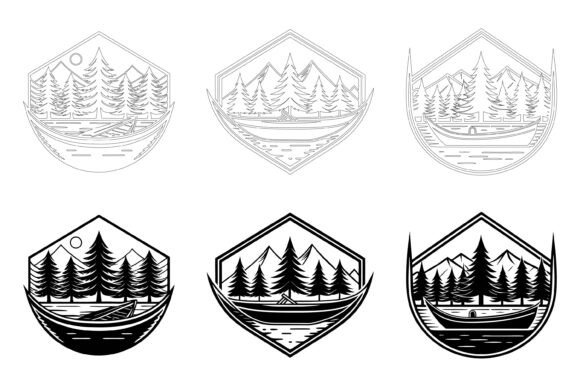
A well-designed set of pine tree vector illustrations goes beyond a simple collection of silhouettes. It often includes multiple tree styles, arrangements, and varying levels of detail to accommodate different design needs. The value lies in the underlying file structure, editability, and consistency.
Look for these hallmarks in a capable set:
- Multiple file formats: AI and EPS are native vector formats that preserve scalability, while a JPG preview gives you a quick reference without opening editing software. Having all three in one bundle saves time.
- Cross-platform compatibility: Files that work on both Mac and Windows remove friction when collaborating across teams or switching between personal devices.
- Organized layer structure: A neat, well-labeled layer panel makes it simple to isolate a branch, change a trunk color, or remove a shadow. This matters especially when you need to adapt a graphic quickly.
- Consistent detailing: Trees that share a common design language—line weight, fill style, and level of abstraction—help your project feel cohesive rather than pieced together.
- Broad usability: When the same set of pine tree graphics works across print, web, symbol creation, app interfaces, and infographics, you reduce the number of assets you need to source and license.
Some illustration packs are built with these qualities in mind. For instance, a collection that includes AI EPS files with fully editable layers and a clean organization gives you a starting point that adapts rather than restricts. This becomes especially important when you are evaluating multiple options side by side.
Vector Formats vs. Raster Images: How the AI EPS Collection Compares
One of the most practical comparisons you can make is between vector-based tree illustrations and their raster counterparts. A set of pine tree delivered as AI and EPS files falls squarely into the vector camp. This means each graphic is built from mathematical paths rather than pixels.
Consider the tradeoffs:
- Scalability: You can enlarge a vector pine tree to billboard size or shrink it to a tiny app icon without losing sharpness. Raster images (like a standalone JPG or PNG at a fixed resolution) become blurry when scaled up past their original dimensions.
- Editability: With an AI or EPS file, you can alter the shape of a branch, adjust the green palette, recolor the tree for a winter theme, or remove elements entirely. A JPG or PNG requires more complex photo-editing work and often shows artifacts.
- File size and performance: Vector files tend to be smaller in storage than high-resolution raster images, though they may require more processing power to render complex gradients. For web use, you’ll typically export them to SVG or PNG; the master file remains edit‑friendly.
- Software requirements: Vectors demand applications like Adobe Illustrator, Affinity Designer, or CorelDRAW. If your workflow relies solely on Photoshop or Canva, you may need to convert or rely on the included JPG previews, which limits editing potential.
If you frequently create materials that must look crisp at any size—such as large banners, vehicle wraps, or high-resolution print—a collection that gives you native AI EPS files is a more efficient starting point than hunting for exceptionally large raster images. On the other hand, if your project is a one-off social media post where you only need a small, quick graphic, a simple PNG or JPG might be all you need. The included JPG files in a set of pine tree can serve that purpose without requiring you to install vector software.
Practical Applications and Best-Fit Scenarios
Understanding where this kind of illustration fits helps you decide whether it aligns with your current project demands.
Print Collateral
Brochures for national parks, outdoor gear catalogs, or eco-tourism flyers benefit from clean, stylized pine tree illustrations. Because vector files maintain their crispness at 300 dpi and beyond, you can run a full-page background without pixelation. Organized layers let you adjust individual trees so the composition balances with text and other elements.
Web and App Design
Symbols and icons based on a set of pine tree work well for navigation menus (e.g., a trail map), loading screens, or badge designs. An AI EPS file gives you the freedom to export at exactly the icon sizes needed—often 16px, 24px, 32px, and up. Consistency across icons prevents a disjointed user experience.
Infographics and Data Visualization
When illustrating forest coverage, tree planting statistics, or seasonal change, stylized pine tree graphics can replace generic chart markers. Because the files are editable, you can color-code them to represent different data series or time periods without starting from scratch.
Branding and Stationery
A lodge, outdoor club, or a business with “pine” in its name might feature a tree motif across business cards, letterheads, and signage. A set that includes both detailed and simplified tree versions lets you maintain brand identity across different media—an intricate version for the logo, a simpler one for a favicon.
Editing Flexibility and Workflow Advantages
One of the strongest workflow benefits of a thoughtfully prepared set of pine tree illustration is how much it reduces repetitive work. Instead of drawing multiple pine trees from scratch, you can start with pre‑made shapes that already have a professional finish.
The ability to change colors quickly cannot be overstated. A single tree silhouette could be dark green for a summer campaign, recolored to a frosty blue for winter, or turned into a warm gold outline for a fall event. All of this takes seconds in vector software. With uneditable raster graphics, each variant might require manual color replacement or masking—a significantly slower process.
Layer organization also saves time. Suppose you need to create a scene with a single pine tree accompanied by mountains and a sun. With a well-structured AI file, you can simply turn off the layers for the extra trees, leaving only the one you need. You can also copy a branch layer and repurpose it as a wreath element, something that’s cumbersome with a flattened raster image.
Moreover, files designed for both Mac and Windows users sidestep the frustration of downloading an asset only to discover it is tied to a single operating system. Cross-platform friendliness is a pragmatic consideration when teams are diverse or when you intend to share resources with clients.
When a Pine Tree Illustration Set May Not Be the Right Fit
No tool or resource is universally perfect. A set of pine tree illustrations excels in many contexts, but there are situations where you might want to explore another direction.
- Photorealism requirements: If your project demands lifelike, high-detail imagery—such as a scientific field guide or a photorealistic architectural rendering—even the most detailed vector illustration may fall short. Photographs or 3D‑rendered trees would be more appropriate.
- Extremely niche tree species: Generic pine illustrations might not display the specific needle arrangement or cone shape of a particular species. A botanist or a regional educational publisher might need custom illustrations rather than a general-purpose set.
- Limited software access: If no one on your team owns or knows how to use vector editing software, the AI and EPS files lose their main advantage. You would be limited to the JPG previews, which are not editable beyond basic cropping and color correction in raster tools.
- Time-sensitive, simple projects: When all you need is a quick placeholder, spending time opening a multi-layered AI file might be overkill. A straightforward PNG download might be faster.
In these cases, supplementing with other resources—or opting for a photography bundle—could yield better results. The key is to match the asset format to the end use, rather than trying to force one collection to do everything.
Making an Informed Choice Among Available Options
When you compare a set of pine tree illustration set like the one offered in the AI EPS collection to other nature-themed vector packs, several factors come into play.
Some packs deliver only PNG files with transparent backgrounds. While convenient, these lock you into a fixed resolution and color scheme. Others provide SVG files, which are also vector but may not offer the same layer complexity or native AI support. The inclusion of AI and EPS together widens compatibility across Adobe and non‑Adobe tools, which can be a deciding factor for studios that use a mix of software.
Another comparison point is the level of organization. Some collections are delivered as a single file with all trees jumbled on one artboard and layers poorly named. A set that emphasizes neatly organized file and layer structure cuts down the hours you spend hunting for the right element. This often gets overlooked until you’re in the middle of a project with a tight deadline.
Editing depth also separates options. Many vector packs are “flat” — meaning colors are baked into one object and you can only scale the whole thing. A set of pine tree that lets you change colors on individual branches or adjust details without breaking the design gives you more creative control. It’s worth checking previews or description notes that mention editable aspects like color and modification ease.
Price points vary, but value isn’t only about the number of files. Ten versatile, well-structured trees that you can alter into dozens of variations often serve you better than fifty rigid PNG files. Consider what you’ll actually use and how much time you’ll spend adapting each asset. If a purchase saves you three hours of drawing time, it’s already paid for itself in most freelance or in‑house workflows.
Eventually, the right choice depends on where your work resides on the spectrum between quick, disposable graphics and polished, multi-purpose assets. If you regularly produce branded materials, digital products, or client-facing designs, investing in an editable vector illustration set aligns with long-term efficiency. For one-off hobby projects, a simpler raster option might suffice. Recognizing that a set of pine tree AI EPS collection sits in the versatile, professional-grade middle helps you weigh alternatives without overspending or underpreparing.
No matter which direction you lean, examining file types, layer organization, ease of editing, and cross-platform support before you commit will steer you toward a resource that genuinely matches your creative rhythm rather than one that merely fills a folder on your hard drive.